
Google Gemini 3 Use Cases: 8 Powerful Ways to Transform Your Workflow in 2025

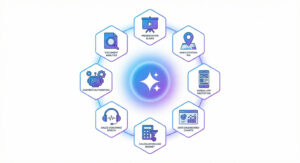
Google Gemini 3 use cases are revolutionizing how professionals, entrepreneurs, and teams approach their daily work. If you're someone who wants to leverage AI to save time, automate complex tasks, and produce high-quality outputs without the steep learning curve, this guide is for you.
The release of Google's most advanced AI model yet—Gemini 3—marks a significant shift in what's possible with artificial intelligence. Unlike previous iterations, this model can execute 10 to 15 coherent reasoning steps independently, process video, images, audio, and code simultaneously, and integrate directly with tools you already use like Google Slides and Google Maps.
In this comprehensive guide, you'll discover eight practical, real-world applications of Gemini 3 that go far beyond novelty. These are genuine productivity transformations that can save hours of work and deliver professional-grade results in minutes.
What Makes Google Gemini 3 Different?
Before diving into the specific use cases, it's essential to understand what sets Gemini 3 apart from other AI models and even its predecessors.
Advanced Reasoning Capabilities
Gemini 3, particularly the "Thinking with 3 Pro" model, represents a significant leap in AI reasoning. The model can independently execute complex, multi-step reasoning processes without losing coherence or context. This means it can tackle sophisticated tasks that previously required human oversight at every stage.
True Multimodal Processing
Unlike models that handle text well but struggle with other formats, Gemini 3 processes:
- Text and documents
- Images and visual content
- Video files
- Audio recordings
- Code in multiple programming languages
This multimodal capability opens doors to use cases that were previously impossible or required multiple specialized tools.
Native Integration with Google Workspace
Perhaps most importantly for productivity, Gemini 3 integrates directly with Google's ecosystem—Slides, Maps, Sheets, and more. This means outputs aren't trapped in the AI interface; they flow directly into the tools where work actually happens.
Use Case 1: AI-Powered Presentation Creation
Creating presentations remains one of the most time-consuming tasks in professional settings. Whether you're preparing for a quarterly review, client pitch, or board meeting, the process of designing slides, organizing content, and ensuring visual consistency can consume hours or even days.
Summary
Gemini 3 transforms raw data into polished, executive-ready presentations with proper formatting, data visualizations, and strategic insights—all from a single prompt. The AI analyzes your source materials, structures the narrative, and produces slides that match your brand guidelines.
Key Features
- Automatic data analysis and insight extraction from CSV files and spreadsheets
- Custom styling based on brand guidelines (fonts, colors, shapes)
- Chart and graph generation directly from numerical data
- Executive summary creation with key metrics highlighted
- Direct export to Google Slides for collaborative editing
How It Works
- Step 1: Open Gemini and ensure you've selected the "Thinking with 3 Pro" model for optimal results.
- Step 2: Prepare your prompt with two essential components: Content instructions (what should the presentation cover?) and Style guidelines (how should it look visually?)
- Step 3: Upload your supporting documents (CSV files, reports, data exports).
- Step 4: Enable Canvas mode by clicking Tools > Canvas (this is essential for slide generation).
- Step 5: Submit your prompt and wait for Gemini to generate the presentation.
- Step 6: Export directly to Google Slides with one click for final edits and sharing.
Use Cases and Benefits
| Scenario | Benefit |
|---|---|
| Quarterly business reviews | Transform raw performance data into stakeholder-ready presentations |
| Sales proposals | Create customized pitch decks with relevant metrics |
| Training materials | Develop educational content from documentation |
| Project updates | Summarize complex project data for leadership |
Pros and Cons
| Pros | Cons |
|---|---|
| Massive time savings (hours reduced to minutes) | May require manual refinement for perfect results |
| Consistent branding across all slides | Dependent on quality of input data |
| Data-driven insights automatically highlighted | Complex custom animations not supported |
| Direct Google Slides integration | Requires Canvas mode to be enabled |
| Collaborative editing after export | Learning curve for optimal prompting |
Use Case 2: Personal Travel Companion and Itinerary Planning
Planning travel, whether for business or leisure, involves researching locations, coordinating timing, and organizing logistics. Gemini 3's integration with Google Maps transforms this process into an interactive, personalized experience.
Summary
Gemini 3 creates comprehensive travel itineraries complete with interactive Google Maps, optimized routes, and location-specific recommendations based on your interests, schedule, and preferences. The AI considers factors like best visiting times, travel logistics, and thematic grouping of destinations.
Key Features
- Interactive map generation with pinned locations
- Day-by-day itinerary organization
- Optimal timing recommendations for each location
- Shareable route links for direct Google Maps import
- Customization based on personal interests and travel style
How It Works
- Step 1: Describe your trip parameters—destination, duration, and interests.
- Step 2: Specify what information you want for each location (best times, tips, photography spots, etc.).
- Step 3: Let Gemini generate the itinerary with mapped locations.
- Step 4: Request shareable route links for each day.
- Step 5: Import routes directly into your Google Maps app for navigation.
Practical Applications
- Photography trips: Locations optimized for lighting conditions and iconic shots
- Food tours: Restaurant recommendations based on cuisine preferences and dietary restrictions
- Business travel: Efficient routing between meetings with buffer time
- Family vacations: Kid-friendly locations with appropriate pacing
- Adventure travel: Activity-based itineraries with difficulty levels
Use Cases and Benefits
| Travel Type | How Gemini 3 Helps |
|---|---|
| Solo exploration | Curated experiences matching personal interests |
| Group trips | Balanced itineraries accommodating different preferences |
| Business + leisure | Maximizing limited free time in new cities |
| Repeat visitors | Discovering hidden gems beyond tourist spots |
Pros and Cons
| Pros | Cons |
|---|---|
| Real-time Google Maps data integration | Recommendations may not reflect very recent changes |
| Shareable, importable routes | Requires Google account for full functionality |
| Customized to specific interests | Complex multi-city trips may need multiple prompts |
| Considers timing and logistics | Cannot book reservations directly |
| Interactive map visualization | Limited to locations with Google Maps coverage |
Use Case 3: Rapid Application Prototyping
Traditionally, turning an app idea into even a basic prototype required coordination between product managers, designers, and developers—a process spanning weeks. Gemini 3's coding capabilities compress this timeline dramatically.
Summary
Gemini 3 can generate fully functional, interactive prototypes from plain-language descriptions. These aren't simple mockups; they're clickable applications with working features, mock data, and realistic user interfaces that stakeholders can actually test.
Key Features
- Single-page application generation from text prompts
- Interactive elements that actually function
- Mock data that demonstrates features realistically
- Clean, modern UI design
- Editable source code for developer handoff
- Visual element selection for targeted refinements
How It Works
- Step 1: Prepare a structured briefing that includes: What you're building (app name and purpose), Who the users are (target audience), Core features required (detailed list), Output format preferences.
- Step 2: Enable Canvas mode in Gemini.
- Step 3: Submit your briefing and let Gemini plan and code the prototype.
- Step 4: Test the interactive prototype directly in the preview mode.
- Step 5: Iterate by chatting with Gemini or using the visual selection tool.
- Step 6: Export or share the code with developers for production development.
Briefing Template Structure
For optimal results, structure your prototype request with:
- Project overview: Name and one-sentence description
- User definition: Who will use this and why
- Feature list: Detailed breakdown of each function
- Output requirements: Single page, all features accessible, mock data included
- Interaction requirements: Clickable, functional elements
Use Cases and Benefits
| Application | Business Value |
|---|---|
| Admin dashboards | Visualize internal tool concepts before development investment |
| Customer portals | Test user experience assumptions with stakeholders |
| Internal tools | Validate workflow automation ideas quickly |
| MVP concepts | Present functional demos to investors or partners |
| Training platforms | Prototype learning management features |
Pros and Cons
| Pros | Cons |
|---|---|
| Minutes instead of weeks for initial prototypes | Not production-ready code |
| No technical skills required to generate | Complex applications may need multiple iterations |
| Actual code generated for developer reference | Limited to single-page applications |
| Visual selection for precise refinements | May require cleanup for professional handoff |
| Dramatically reduces specification miscommunication | Advanced features may not be fully functional |
Use Case 4: Interactive Data Visualization Dashboards
Data analysis has long been an AI strength, but the visualization of that analysis has lagged behind. Gemini 3 bridges this gap by creating interactive, explorable dashboards from raw data.
Summary
Upload spreadsheets or CSVs, and Gemini 3 doesn't just analyze the numbers—it creates fully interactive dashboards with multiple views, charts, and insights. The AI determines what visualizations make sense for your data and builds them automatically.
Key Features
- Automatic chart and graph selection based on data types
- Multiple dashboard tabs for different analytical perspectives
- Interactive elements (filters, hover details, toggleable views)
- Intelligent data categorization (e.g., separating owned vs. paid media)
- Strategic insights and recommendations based on patterns
- Clean, professional visual design
How It Works
- Step 1: Prepare your data in CSV or spreadsheet format.
- Step 2: Craft a prompt describing the dashboard purpose and context.
- Step 3: Enable Canvas mode in Gemini.
- Step 4: Upload your data files and submit the prompt.
- Step 5: Explore the generated interactive dashboard.
- Step 6: Request refinements or additional views as needed.
What Gemini 3 Automatically Determines
Without explicit instructions, the AI will:
- Identify appropriate chart types for each metric
- Group related data logically
- Create meaningful comparisons
- Highlight trends and anomalies
- Generate multiple analytical perspectives
Use Cases and Benefits
| Data Type | Dashboard Application |
|---|---|
| Marketing performance | Channel efficiency, ROI comparisons, trend analysis |
| Sales data | Pipeline visualization, rep performance, forecasting |
| Financial reports | Budget tracking, expense categorization, projections |
| Operations metrics | Efficiency tracking, bottleneck identification |
| HR analytics | Headcount trends, retention analysis, hiring funnels |
Pros and Cons
| Pros | Cons |
|---|---|
| Truly interactive, not static charts | Requires Canvas mode |
| AI-determined best visualizations | May need guidance for very specific requirements |
| Multiple analytical perspectives | Complex datasets may need preprocessing |
| Strategic insights included | Export options limited compared to dedicated BI tools |
| Rapid iteration possible | Real-time data connection not supported |
Use Case 5: Embeddable Lead Magnet Tools
Interactive calculators and tools are proven lead generation assets, but they typically require developer resources to build and maintain. Google AI Studio with Gemini 3 changes this equation.
Summary
Using Google AI Studio (aistudio.google.com), you can create functional, embeddable widgets—pricing calculators, quote generators, ROI estimators—that capture leads and provide immediate value to website visitors. These tools are generated from simple text prompts and can be deployed to your website.
Key Features
- Standalone, embeddable widget generation
- Interactive input elements (sliders, dropdowns, number fields)
- Real-time calculation and display
- Built-in lead capture forms
- Professional visual design
- Dynamic charts and visualizations
- Export to GitHub or Google Cloud for deployment
How It Works
- Step 1: Access Google AI Studio at aistudio.google.com.
- Step 2: Navigate to the Build section.
- Step 3: Select Gemini 3 Pro as your model.
- Step 4: Write a detailed prompt describing your calculator or tool.
- Step 5: Review and test the generated widget.
- Step 6: Iterate with additional prompts to refine functionality.
- Step 7: Deploy via GitHub or Google Cloud integration.
Lead Magnet Examples
Investment Calculator:
- Initial investment input
- Monthly contribution slider
- Risk tolerance selection
- Interactive growth projection chart
- Lead capture for personalized plans
Service Quote Calculator:
- Service type selection
- Quantity/scope inputs
- Add-on options
- Real-time pricing
- Booking form integration
Project Estimator:
- Project complexity selection
- Timeline inputs
- Feature requirements
- Dynamic cost calculation
- Contact form for detailed quotes
Use Cases and Benefits
| Business Type | Lead Magnet Application |
|---|---|
| Financial services | Investment growth calculators, loan estimators |
| Home services | Cleaning quotes, renovation estimates |
| SaaS companies | ROI calculators, pricing configurators |
| Agencies | Project quote generators |
| Real estate | Mortgage calculators, property value estimators |
Pros and Cons
| Pros | Cons |
|---|---|
| No coding skills required to generate | Deployment requires some technical knowledge |
| Professional-grade functionality | May need developer assistance for website integration |
| Built-in lead capture | Limited styling customization without code editing |
| Rapid iteration through chat | Complex business logic may need refinement |
| Multiple deployment options | Requires Google Cloud or GitHub for hosting |
Use Case 6: AI Sales Coaching Platform
Sales call analysis traditionally requires expensive software or manual review. Gemini 3's multimodal capabilities enable sophisticated call analysis that was previously only available to enterprise organizations.
Summary
By uploading audio files of sales calls, Gemini 3 can transcribe, analyze sentiment, identify speakers, and generate actionable coaching insights—all from a single prompt in Google AI Studio. This democratizes sales coaching technology for teams of any size.
Key Features
- Automated transcription with speaker identification (diarization)
- Sentiment and engagement tracking throughout calls
- Visual sentiment graphs showing conversation flow
- AI-generated coaching cards with strengths and opportunities
- Specific, actionable feedback tied to call moments
- Custom analysis criteria based on your sales methodology
How It Works
- Step 1: Access Google AI Studio and select Gemini 3 Pro.
- Step 2: Create your sales coaching prompt specifying desired outputs.
- Step 3: Upload the audio file from a sales call.
- Step 4: Let Gemini process the audio (transcription, analysis, insight generation).
- Step 5: Review the dashboard with transcript, sentiment graph, and coaching insights.
- Step 6: Use insights for rep feedback and training sessions.
Analysis Components
Diarized Transcript: Conversation broken down by speaker with timestamps.
Sentiment Graph: Visual representation of engagement levels throughout the call, identifying high points and potential concerns.
Coaching Card:
- Three things the salesperson did well
- Three missed opportunities
- Specific examples from the call
Use Cases and Benefits
| Role | Application |
|---|---|
| Sales managers | Scalable rep coaching without reviewing every call |
| Sales reps | Self-improvement through automated feedback |
| Training teams | Identifying common skill gaps across the organization |
| Quality assurance | Consistent evaluation criteria application |
| Onboarding | Accelerating new hire development with concrete examples |
Pros and Cons
| Pros | Cons |
|---|---|
| Multimodal audio understanding | Audio quality affects transcription accuracy |
| Objective, consistent analysis | May miss industry-specific nuances initially |
| Scalable across large call volumes | Requires audio file uploads (no live integration) |
| Actionable coaching insights | Custom sales methodologies need prompt engineering |
| Cost-effective compared to dedicated platforms | Sensitive call data requires appropriate handling |
Comparison: Google Gemini 3 Use Cases Overview
| Use Case | Primary Tool | Time Savings | Technical Skill Required | Best For |
|---|---|---|---|---|
| Presentation Creation | Gemini (Canvas) | Hours → Minutes | None | Executives, managers, analysts |
| Travel Companion | Gemini + Maps | Days → Minutes | None | Travelers, planners, photographers |
| Rapid Prototyping | Gemini (Canvas) | Weeks → Minutes | None (generation), Some (deployment) | Product teams, entrepreneurs |
| Data Visualization | Gemini (Canvas) | Hours → Minutes | None | Analysts, managers, executives |
| Lead Magnet Tools | Google AI Studio | Days → Hours | Some (deployment) | Marketers, business owners |
| Sales Coaching | Google AI Studio | Hours → Minutes | None | Sales leaders, trainers |
How to Access Google Gemini 3
Option 1: Gemini Web Interface
For presentation creation, travel planning, prototyping, and data visualization:
- Navigate to gemini.google.com
- Ensure you're signed into your Google account
- Select "Thinking with 3 Pro" model
- Enable Canvas mode for interactive outputs
Option 2: Google AI Studio
For embeddable tools, custom applications, and multimodal analysis:
- Go to aistudio.google.com
- Sign in with your Google account
- Navigate to the Build section
- Select Gemini 3 Pro model
- Create your custom application through prompts
Best Practices for Optimal Results
Prompting Strategies
- Be Specific: Vague prompts produce vague results. Include details about format, style, features, and constraints.
- Provide Context: Explain who the output is for and how it will be used.
- Include Examples: When possible, reference styles or formats you want to emulate.
- Prevent Hallucination: Explicitly instruct Gemini to use only provided data and not fabricate information.
Technical Considerations
- Enable Canvas Mode: For any visual or interactive output, Canvas mode must be activated.
- Data Format: Clean, well-organized CSV files produce better results than messy spreadsheets.
- Iteration: Expect to refine outputs through conversation rather than achieving perfection immediately.
- Export Early: For collaborative work, export to native Google tools (Slides, Sheets) as soon as the base output is satisfactory.
Frequently Asked Questions
What is Google Gemini 3 and how is it different from previous versions?
Google Gemini 3 is Google's most advanced AI model, featuring significantly improved reasoning capabilities that allow it to execute 10-15 coherent steps independently. Unlike earlier versions, Gemini 3 offers true multimodal processing (text, images, audio, video, and code simultaneously) and deep integration with Google Workspace tools. This combination enables practical use cases that weren't possible before, such as creating interactive presentations from raw data or analyzing sales calls with speaker identification and sentiment tracking.
Do I need coding skills to use Gemini 3 for prototyping or building tools?
No coding skills are required to generate prototypes or interactive tools using Gemini 3. The AI writes all necessary code based on your plain-language descriptions. However, deploying these tools to a live website may require some technical knowledge or developer assistance, particularly for integration with existing systems. The generated code can serve as a valuable starting point for developers, significantly reducing development time even when customization is needed.
How accurate are the AI-generated presentations and data visualizations?
When provided with clean, well-organized data and clear instructions, Gemini 3 produces highly accurate outputs. The key is explicitly instructing the AI to use only provided data and not generate fabricated information. For critical business presentations, always verify key figures against source data before presenting. The AI excels at structuring and visualizing information but should be treated as a powerful first draft that benefits from human review.
Can I use Gemini 3 for confidential business data?
Google's AI tools are subject to their data handling and privacy policies. For sensitive business information, review Google's terms of service and data processing agreements. Enterprise customers may have additional security options through Google Workspace agreements. When handling confidential data, consider what information is strictly necessary for the task and whether anonymization is appropriate before uploading.
What's the difference between using Gemini directly versus Google AI Studio?
Gemini's web interface (gemini.google.com) is optimized for conversational tasks and outputs that integrate with Google Workspace, such as presentations, maps, and documents. Google AI Studio (aistudio.google.com) is designed for building standalone applications and tools that can be deployed independently, such as embeddable calculators or custom analysis platforms. Choose based on whether your output needs to live within Google's ecosystem or function as an independent web application.
How do I enable Canvas mode and why is it necessary?
Canvas mode is enabled by clicking "Tools" in the Gemini interface and selecting "Canvas." This mode is necessary for any output that requires visual rendering or interactivity—presentations, prototypes, dashboards, and similar outputs. Without Canvas mode, Gemini will describe what it would create rather than actually generating the visual output. Always enable Canvas before submitting prompts for visual or interactive content.
Can Gemini 3 analyze audio and video files?
Yes, Gemini 3 has genuine multimodal capabilities that include audio and video analysis. The sales coaching use case demonstrates this by processing audio recordings of calls to produce transcripts, sentiment analysis, and coaching insights. This capability extends to video content as well, enabling analysis of visual elements, spoken content, and contextual understanding simultaneously.
How long do these AI-generated outputs take to create?
Most outputs are generated within 2-5 minutes, depending on complexity. Presentations typically take 2-3 minutes, prototypes 3-5 minutes, and data visualizations 1-3 minutes. Audio analysis duration depends on the length of the audio file. This represents a dramatic reduction from traditional methods—what previously took hours or days now takes minutes.
Are the outputs from Gemini 3 production-ready?
Outputs should be considered high-quality starting points rather than finished products. Presentations may need minor tweaks to perfect messaging. Prototypes require developer involvement for production deployment. Lead magnets need website integration. The value lies in reducing the time to first draft from hours/days/weeks to minutes, not in eliminating all human involvement. Plan for a review and refinement phase in your workflow.
What file formats does Gemini 3 support for uploads?
Gemini 3 accepts various file formats including CSV files, spreadsheets, documents, images, audio files, and PDFs. For data analysis and visualization, clean CSV files typically produce the best results. Audio analysis works with common formats like MP3 and WAV. When uploading multiple files, ensure they're clearly labeled so you can reference them accurately in your prompts.
Conclusion
Google Gemini 3 represents a genuine shift in what's possible with AI-assisted work. The eight use cases explored here—from presentation creation to sales coaching—demonstrate practical applications that deliver immediate time savings and quality improvements.
What makes Gemini 3 particularly valuable is its integration with tools professionals already use. Outputs don't remain trapped in an AI interface; they flow directly into Google Slides, Maps, and other productivity applications where collaboration and refinement happen naturally.
The key to success with these tools lies in clear, specific prompting and a willingness to iterate. Treat AI outputs as powerful first drafts rather than finished products, and you'll find your productivity transformed.
Whether you're an executive preparing quarterly reviews, an entrepreneur prototyping new ideas, or a sales leader looking to scale coaching, Gemini 3 offers capabilities that were simply unavailable until now. The best way to understand the potential is to try these use cases yourself—start with one that addresses a current pain point in your workflow and experience the difference firsthand.