
AI News Roundup 2025: Major Updates in Image, Audio, and Video AI Models You Need to Know

AI Technology Updates 2025 - Complete Overview of Latest AI Tools
Introduction
If you're someone who follows artificial intelligence developments—whether you're a creator, developer, marketer, or just an enthusiast—this comprehensive AI news roundup for 2025 is exactly what you need. The AI industry has been moving at breakneck speed, with major companies releasing groundbreaking updates in image generation, audio isolation, and video editing.
This blog covers everything from OpenAI's new GPT Image 1.5 model to Meta's revolutionary audio segmentation tool, plus significant updates from Luma AI, Kling, Adobe Firefly, and Alibaba's Wan 2.6. By the end of this article, you'll have a complete understanding of the latest AI tools, how they work, their practical applications, and how they compare against each other. Let's dive into the most important AI developments shaping the creative and tech landscape in 2025.
OpenAI's GPT Image 1.5: A New Contender in AI Image Generation
OpenAI has officially launched GPT Image 1.5, available both within ChatGPT and through their API for developers. This release positions OpenAI to compete directly with Google's state-of-the-art image model, Imagen 3 (referred to in some circles as "Nano Banana Pro").
Key Features of GPT Image 1.5
- Integrated within ChatGPT: Users can generate and edit images directly in conversations
- API access for developers: Build custom applications with image generation capabilities
- Advanced instruction following: Better comprehension of complex, multi-step prompts
- Image editing capabilities: Remove objects, change outfits, adjust lighting, and more
- Contextual understanding: Maintains consistency when making multiple edits
How GPT Image 1.5 Performs in Real-World Tests
When tested with complex editing prompts—such as removing a person from an image while preserving the main subject's face, pose, and lighting, then adding a leather jacket and neon rim lighting—GPT Image 1.5 demonstrated impressive results. The model successfully:
- Applied purple glow effects around the subject
- Maintained the subject's position accurately
- Removed unwanted elements from the background
- Followed multi-step instructions with reasonable accuracy
However, like all AI models, it isn't perfect. In layout-based tests requiring precise placement of objects within rectangles, the model occasionally placed elements on boundary lines rather than fully inside designated areas.
Use Cases for GPT Image 1.5
| Use Case | Description |
|---|---|
| Marketing materials | Quick creation of promotional images with specific requirements |
| Photo editing | Remove unwanted elements, change clothing, adjust lighting |
| Product visualization | Generate product mockups and variations |
| Creative projects | Artistic image generation with detailed specifications |
| Prototyping | Rapid visual concept development |
Flux 2 Max: Black Forest Labs Enters the Competition
Black Forest Labs released Flux 2 Max this week, entering the competitive AI image generation market alongside OpenAI and Google. This model focuses on both image generation and editing capabilities.
Key Features of Flux 2 Max
- Logo placement on products: Add branding elements to generated images
- Iterative editing: Build upon previous edits while maintaining original context
- Grounded image generation: Researches what should appear in images and incorporates accurate details
- Style transfer: Transform images into various artistic styles
- Multi-step workflows: Chain multiple editing operations together
How Flux 2 Max Works
- Upload your source image or start with a text prompt
- Describe the modifications you want to make
- The model processes your request and generates the edited result
- Iterate further by adding more instructions to refine the output
Performance Comparison: Flux 2 Max vs. Competitors
In comparative testing using identical prompts, Flux 2 Max showed mixed results:
Strengths:
- Good at style transformations
- Handles iterative editing workflows
- Produces high-quality base images
Weaknesses:
- Struggled with person identification in group photos
- Sometimes misinterprets which elements to remove or keep
- Layout-based prompts with specific requirements proved challenging
For example, when asked to remove a specific person from a group photo and change another person's outfit, Flux 2 Max created unexpected results—merging features from different subjects rather than following the precise instructions.
Pros and Cons of Flux 2 Max
| Pros | Cons |
|---|---|
| Free to test | Less accurate with complex instructions |
| Good iterative editing | May misidentify subjects in photos |
| Style transfer capabilities | Struggles with precise layout requirements |
| Grounded generation feature | Not as refined as GPT Image 1.5 |
Meta's Segment Anything Model for Audio: Revolutionary Sound Isolation
Meta has expanded its popular Segment Anything Model (SAM) technology to audio, creating a powerful tool for isolating specific sounds from audio files. If you're familiar with SAM for images and video—where you can highlight, remove, or add effects to specific objects—the audio version works on the same principle.
Key Features of Meta's Audio SAM
- Sound isolation: Extract specific instruments or voices from mixed audio
- Text-based commands: Simply type what you want to isolate
- Effect application: Add audio effects to isolated elements
- Free access: Available through Meta's Playground at ai.meta.com/demos
- Non-destructive editing: Original audio remains intact while creating separated tracks
How Meta's Audio Segmentation Works
- Upload your audio file: Supports various audio formats including music and podcasts
- Type your isolation command: Specify what you want to extract (guitars, vocals, drums, etc.)
- Click "Isolate Sound": The AI processes and separates the audio
- Download results: Get both the isolated sound and the version without that element
Real-World Testing Results
Music Isolation Test:
Using an AI-generated song (to avoid copyright issues), the system successfully:
- Completely removed vocals and other instruments when isolating guitars
- Created a clean guitar-only track
- Generated a version with guitars removed, leaving drums, bass, and other instruments intact
Podcast/Speech Isolation Test:
When given a video with two speakers:
- Successfully isolated male vocals from the conversation
- Cleanly separated female speech to a different track
- Maintained audio quality throughout the separation process
Use Cases for Audio SAM
| Application | How It Helps |
|---|---|
| Podcast production | Separate individual speakers for independent editing |
| Music production | Isolate instruments for remixing or sampling |
| Video editing | Extract dialogue from background noise |
| Audio restoration | Remove unwanted sounds while preserving desired elements |
| Educational content | Isolate specific instruments for music lessons |
Pros and Cons of Meta's Audio SAM
| Pros | Cons |
|---|---|
| Completely free to use | Effect application limited |
| Accurate sound isolation | Works best with clear audio sources |
| Easy text-based interface | May struggle with heavily mixed audio |
| Supports various audio types | Still in development phase |
Vibe Code: Building AI Apps Directly from Your Phone
A new tool called Vibe Code has emerged, making it possible to build and ship AI-powered applications entirely from your smartphone. This represents a significant shift in app development accessibility.
Key Features of Vibe Code
- Mobile-first development: Build apps directly on your phone
- Pinch-to-build interface: Intuitive gesture-based controls
- Claude Code integration: AI-powered code generation
- Asset generation: Create images, sounds, and haptic feedback
- One-tap publishing: Ship directly to the Apple App Store
- Monetization built-in: Add paywalls to your apps
How Vibe Code Works
- Open the Vibe Code app on your phone
- Pinch the screen to enter the builder interface
- Describe the app you want to create
- Claude Code generates the application code
- Add generated assets (images, sounds, haptics)
- Configure monetization options if desired
- Publish directly to the App Store with one tap
Use Cases for Vibe Code
- Entrepreneurs: Quickly prototype and launch app ideas
- Content creators: Build companion apps for their audience
- Small businesses: Create custom apps without hiring developers
- Hobbyists: Experiment with app development without technical barriers
Adobe Firefly's Text-Based Video Editing
Adobe Firefly now supports prompt-based video editing, allowing users to make changes to videos using natural language commands. While still in beta, this feature represents a significant step toward AI-assisted video production.
Key Features of Adobe Firefly Video Editing
- Transcript-based editing: Edit video by modifying the text transcript
- Automatic speech recognition: Converts spoken words to editable text
- Non-destructive cutting: Remove sections by deleting transcript portions
- Speaker assignment: Tag different speakers in the video
- Integration with Firefly ecosystem: Works alongside other Adobe AI tools
How Firefly Video Editing Works
- Upload your video to Adobe Firefly
- Click on "Edit Video Beta"
- Select "Text-Based Editing"
- Review the automatically generated transcript
- Delete words or phrases to remove those sections from the video
- Export your edited video
Current Limitations
The current implementation is relatively basic compared to what many expected:
- Primarily focused on transcript-based cutting
- Cannot add AI-generated elements to existing videos
- No object removal or addition features yet
- Style transfer not available for video content
Pros and Cons of Adobe Firefly Video Editing
| Pros | Cons |
|---|---|
| Intuitive text-based interface | Very basic features currently |
| Accurate transcription | Limited to cutting/removing content |
| Part of Adobe ecosystem | No AI enhancement options yet |
| Non-destructive editing | Still in beta with limitations |
Luma AI Ray 3 Modify: Advanced Video Animation
Luma AI released Ray 3 Modify, a new video model that allows users to animate images using driving videos as reference. This technology enables the transfer of motion from one video to a completely different visual style.
Key Features of Luma Ray 3 Modify
- Start and end frame control: Define the beginning and ending states of your video
- Driving video input: Use reference videos to control motion
- Character reskinning: Apply different visual styles while maintaining motion
- Scene modification: Add crowds, change hair colors, alter environments
- High detail preservation: Maintains fine details like ropes and textures
How Luma Ray 3 Modify Works
- Access Luma Dream Machine and select "Boards"
- Create a new board and set it to "Modify" mode
- Ensure "Video" and "Ray 3" are selected
- Upload your driving video (limited to 10 seconds)
- Set your start frame, character reference, or modify frame
- Adjust strength settings as needed
- Generate and wait for processing
Real-World Testing Results
Test 1: Image Animation
- Start frame: Group photo at a brewery
- End frame: Single person with purple glow and leather jacket
- Result: Animation successfully transitioned between frames, though with some awkward arm movements
Test 2: Driving Video with Character Reference
- Driving video: Person playing with a lightsaber
- Character reference: AI-generated pirate with sword
- Result: After initial failures (10+ minute generation times), the motion successfully transferred to the pirate character
Important Notes for Users
- Processing times: Can take 10+ minutes, especially when the system experiences high demand
- Paid feature: Driving video functionality requires a subscription
- Best practices: Removing the avatar and using just the video with starting frame may yield better results
- Patience required: Generation may fail on first attempts due to server load
Pros and Cons of Luma Ray 3 Modify
| Pros | Cons |
|---|---|
| Impressive motion transfer | Very slow processing times |
| High detail preservation | Frequent generation failures |
| Multiple input options | Requires paid subscription for best features |
| Creative flexibility | Lack of clear documentation |
Kling Video 2.6: Enhanced Motion Control and AI Voice
Kling rolled out significant updates to their Video 2.6 model, including improved motion control and AI voice synchronization capabilities.
Motion Control Features
- Full body motion detection: Captures complex movements accurately
- Hand tracking: Improved handling of intricate hand gestures
- Facial expression capture: Maintains expressive faces throughout animations
- Driving video support: Use reference videos to animate static images
AI Voice Control and Lip Sync
The standout feature of Kling's update is the dramatically improved lip synchronization. When generating videos with spoken content, the model produces remarkably realistic lip movements that match the audio.
How to Use Kling's New Features
For Motion Control:
- Select a driving video showing the motion you want to capture
- Upload a static image you want to animate
- Let Kling apply the motion to your image
For AI Voice:
- Use the Video 2.6 model with native audio enabled
- Include speaking actions in your prompt
- Generate the video with synchronized lip movements
Testing Results
Motion Control Test:
Using a video of sword play as a driving video and a Jedi image as the target, the results showed significant improvement over previous versions. While some artifacts appeared (sword occasionally disappearing), the overall motion transfer was much more accurate.
Voice Sync Test:
When prompted to generate a video of someone speaking to the camera, the lip synchronization was described as "the best lip-syncing seen so far from AI models."
Pros and Cons of Kling Video 2.6
| Pros | Cons |
|---|---|
| Excellent lip synchronization | Some features hard to locate in interface |
| Improved motion control | Avatar 2.0 quality inconsistent |
| Native audio generation | Processing times can be lengthy |
| Free tier available | Best results require specific settings |
Alibaba's Wan 2.6: Multi-Shot Video Generation
Alibaba released Wan 2.6, another powerful video model with capabilities similar to Kling but with some unique features.
Key Features of Wan 2.6
- Reference video input: Use existing videos to guide generation
- Native audio video sync: Synchronized sound generation
- Auto storyboarding: Converts simple prompts into multi-shot videos
- First and last frame control: Define start and end states
- Sound-driven generation: Start from audio files
Interface Options
The Wan 2.6 model offers several input methods:
- First frame specification
- Last frame specification
- Sound-driven generation (start with audio)
- Cameo features (insert specific characters)
Current Accessibility
Many of the most impressive demonstrations of Wan 2.6 have been achieved through:
- Open-source implementations
- ComfyUI workflows
- Custom setups outside the standard interface
The web interface provides access to basic features, but advanced functionality may require technical implementation.
Runway Gen 4.5: Clarification on Audio Capabilities
There has been some confusion regarding Runway's Gen 4.5 model and its audio generation capabilities. While publications like TechCrunch reported that Runway added native audio to its latest video model, user experiences have been inconsistent.
Current Status
- Official reports: Indicate native audio support exists
- User experience: Many users, including experienced creators, report no audio generation
- Possible explanations: Feature may be rolling out gradually, require specific settings, or be limited to certain account types
If you've successfully generated audio with Runway Gen 4.5, the community would benefit from understanding the exact process.
OpenAI Allows Developer App Submissions to ChatGPT
OpenAI announced that developers can now submit applications for integration with ChatGPT. Previously, only major companies like Adobe, Canva, Figma, and Google (Gmail) had apps available in ChatGPT's app ecosystem.
What This Means for Developers
- Broader access: Independent developers can now create ChatGPT apps
- Submission process: Apps must go through approval before appearing
- Quality control: OpenAI maintains review standards for submissions
- New opportunities: Create tools that integrate directly with ChatGPT
How to Submit an App
- Access ChatGPT settings
- Navigate to the "Apps" section
- Follow the submission guidelines provided by OpenAI
- Wait for approval (not automatic)
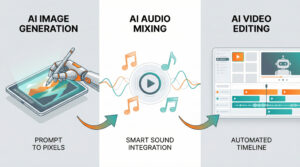
AI Tools Comparison 2025 - Comprehensive Overview of Image and Video AI Models
Comprehensive Comparison: AI Image Models 2025
| Feature | GPT Image 1.5 | Flux 2 Max | Google Imagen 3 |
|---|---|---|---|
| Image Generation | Excellent | Good | Excellent |
| Image Editing | Strong | Moderate | Strong |
| Instruction Following | High | Moderate | High |
| Iterative Editing | Good | Excellent | Good |
| Style Transfer | Good | Good | Good |
| API Access | Yes | Yes | Limited |
| Free Tier | Limited | Yes | Limited |
| Integration | ChatGPT | Standalone | Google Products |
Comprehensive Comparison: AI Video Models 2025
| Feature | Luma Ray 3 | Kling 2.6 | Wan 2.6 | Runway Gen 4.5 |
|---|---|---|---|---|
| Motion Control | Yes | Excellent | Yes | Limited |
| Driving Video | Yes (Paid) | Yes | Yes | No |
| Lip Sync Quality | Good | Excellent | Good | N/A |
| Native Audio | No | Yes | Yes | Disputed |
| Processing Speed | Slow | Moderate | Slow | Fast |
| Free Tier | Limited | Yes | Yes | Limited |
| Multi-Shot | No | No | Yes | No |
Frequently Asked Questions
Conclusion
The AI landscape in 2025 continues to evolve at an unprecedented pace, with significant advancements across image generation, audio processing, and video creation. OpenAI's GPT Image 1.5 sets a new standard for instruction-following in image editing, while Meta's audio segmentation tool opens creative possibilities for musicians and content creators alike.
In the video space, Kling Video 2.6's lip synchronization and Luma Ray 3's motion transfer capabilities represent meaningful progress toward more natural AI-generated content. Meanwhile, tools like Vibe Code are democratizing app development in ways that would have seemed impossible just a year ago.
Whether you're a creative professional, developer, or enthusiast, now is an excellent time to explore these tools and integrate them into your workflows. Many offer free tiers or trial periods, making experimentation accessible to everyone. Stay curious, keep testing, and don't hesitate to share your discoveries with the broader AI community.